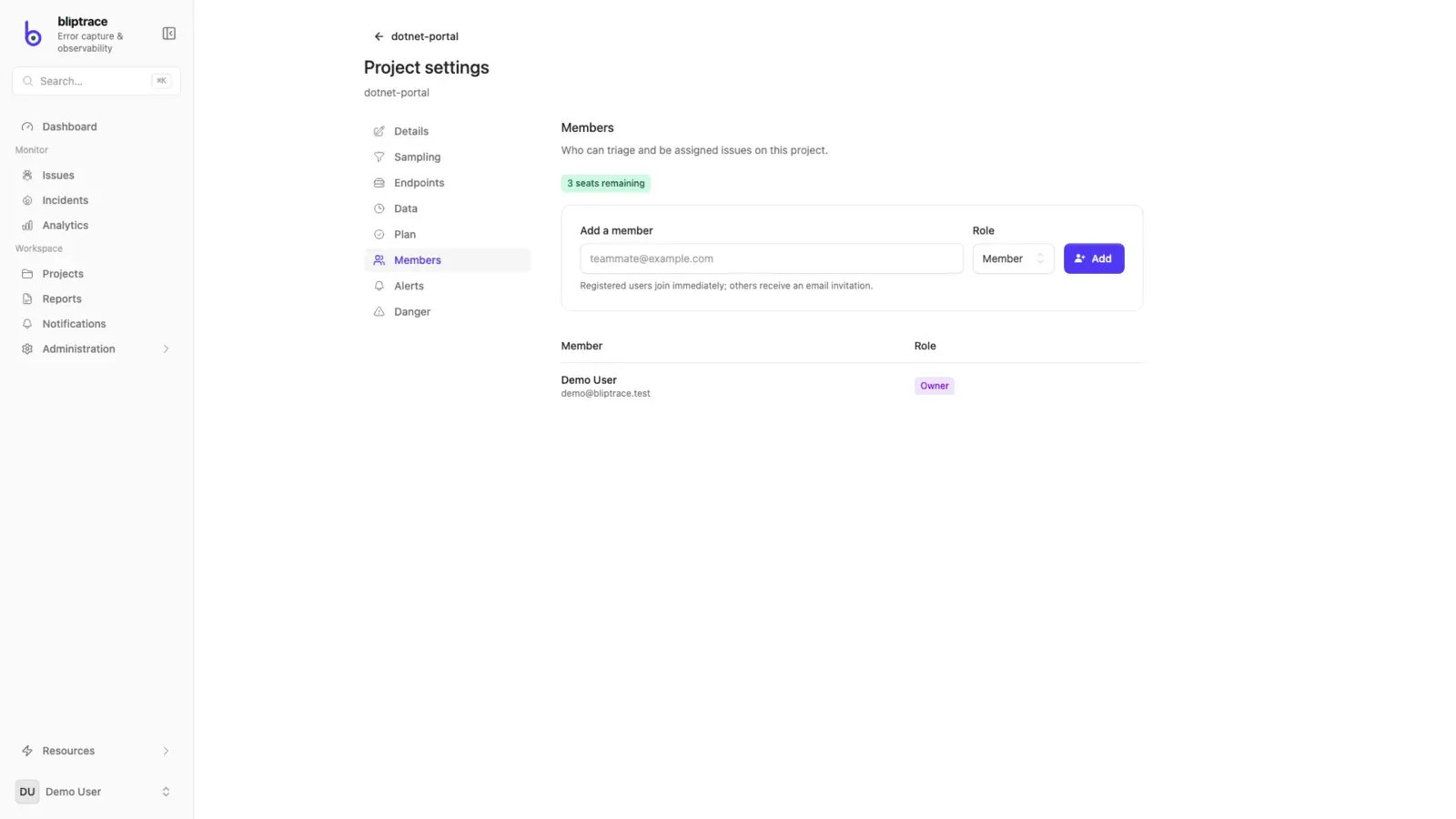
Open a project, then Settings → Members.
Reused screenshot with demo data.
Add a member
Enter their email, pick a role and choose Add.
- Someone who already has a Bliptrace account joins straight away.
- Anyone else gets an email invitation. They join the project when they accept it, after signing up if needed.
A badge shows how many seats your account has left. Accounts start with one seat (the owner); more seats come with your plan.
Roles
| Role | View | Triage | Manage keys | Manage members | Manage alert rules | Rename, deploy markers | Archive, delete |
|---|---|---|---|---|---|---|---|
| Owner | Yes | Yes | Yes | Yes | Yes | Yes | Yes |
| Admin | Yes | Yes | Yes | Yes | Yes | Yes | |
| Member | Yes | Yes | |||||
| Viewer | Yes |
Triage means changing an issue’s status, assigning it and opening incidents. The account owner is always the owner of its projects; the owner role cannot be given to someone else from this page.
The same roles apply everywhere: the dashboard, the Integration API and the MCP tools all check them.
To remove someone, use the menu on their row. Removing a member also cancels a pending invitation for that email. A member’s role cannot be changed in place yet: remove them and add them again with the new role.