Without an alert rule, issues only show in the inbox. Add rules in Project → Settings → Alerts.
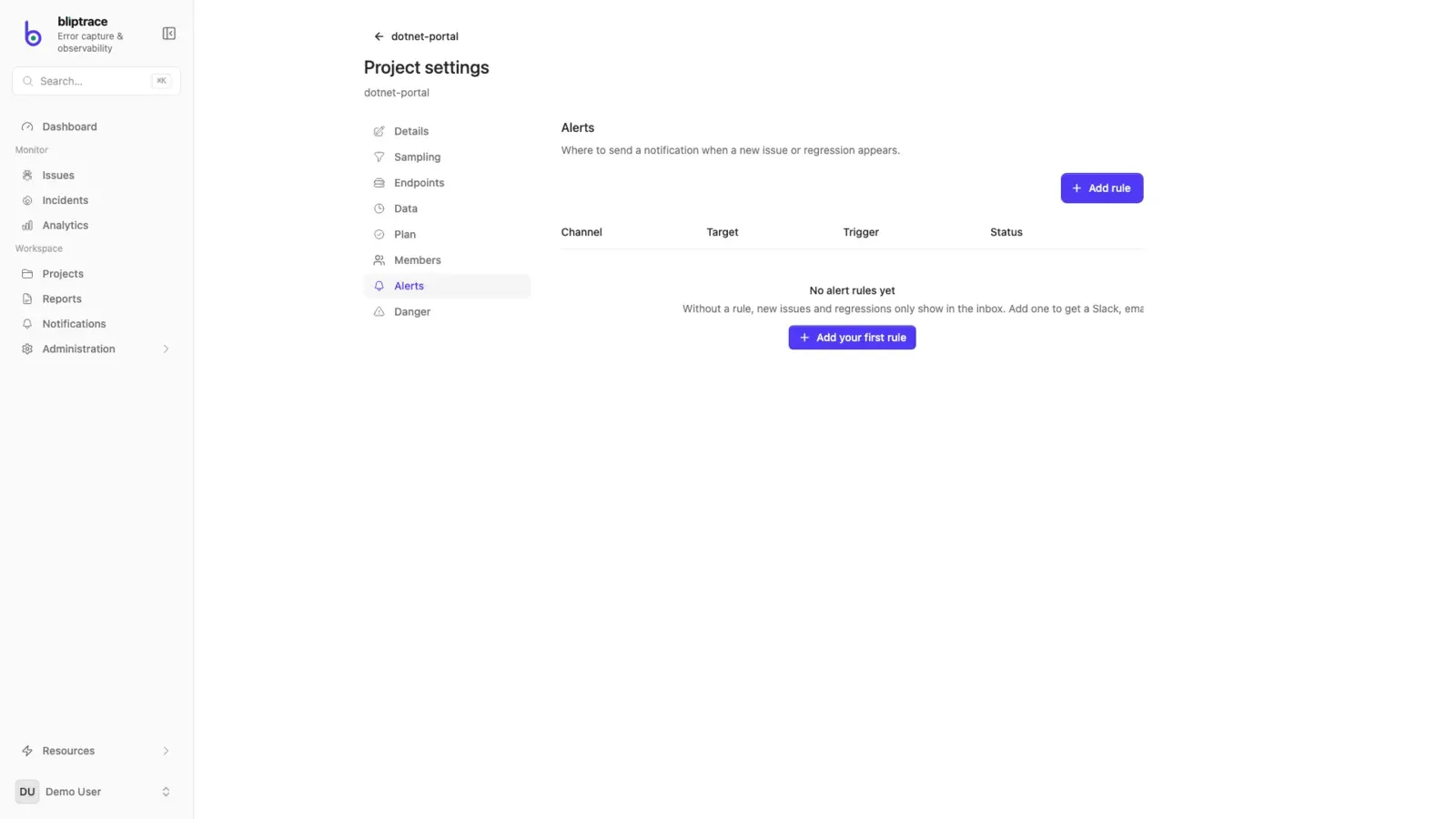
Reused screenshot with demo data.
Add a rule
Choose Add rule, then:
| Field | What to enter |
|---|---|
| Channel | Webhook, Slack, Email or Telegram |
| Target | Depends on the channel, see below |
| Spike threshold (optional) | Leave empty to alert on every new issue and regression. Set a number N to alert once an issue reaches N occurrences |
| Channel | Target |
|---|---|
| An email address | |
| Slack | A Slack incoming webhook URL (https://hooks.slack.com/…) |
| Telegram | bot_token:chat_id: your bot’s token, a colon, then the chat id |
| Webhook | An https:// URL on a public host. Local, private and reserved addresses are refused |
A project can have several rules, for example email for the owner and Slack for the team. Each rule’s menu can send a test notification, pause or resume the rule, or delete it.
What triggers an alert
- New issue: the first occurrence of a new fingerprint.
- Regression: a resolved issue happens again (see Regressions).
- Spike: with a threshold set, an issue reaching that many occurrences.
Managing rules needs the manage alert rules ability (owner or admin). In lists, targets are masked to their last four characters because webhook URLs and bot tokens are secrets.